> For the complete documentation index, see [llms.txt](https://guide.roundhr.com/llms.txt). Markdown versions of documentation pages are available by appending `.md` to page URLs; this page is available as [Markdown](https://guide.roundhr.com/homepage_builder_guide/basic/menu_button.md).
# 메뉴, 버튼 구성
채용 홈페이지 빌더(편집기)의 메뉴와 버튼 구성을 안내합니다. 각 버튼의 역할을 파악하여 효율적으로 홈페이지를 편집할 수 있습니다.
## 개요
채용 홈페이지 빌더의 상단 및 좌측에 배치된 메뉴와 버튼의 기능을 안내합니다.
### 핵심 이점
* 빌더 편집 화면의 각 버튼 역할을 한눈에 파악할 수 있습니다.
* 페이지 메뉴, 섹션 메뉴, 스타일 설정 등 주요 기능에 빠르게 접근할 수 있습니다.
***
## 사전 준비
* **권한**: 관리자 권한이 필요합니다. 매니저는 별도 권한 부여 시 편집할 수 있습니다.
***
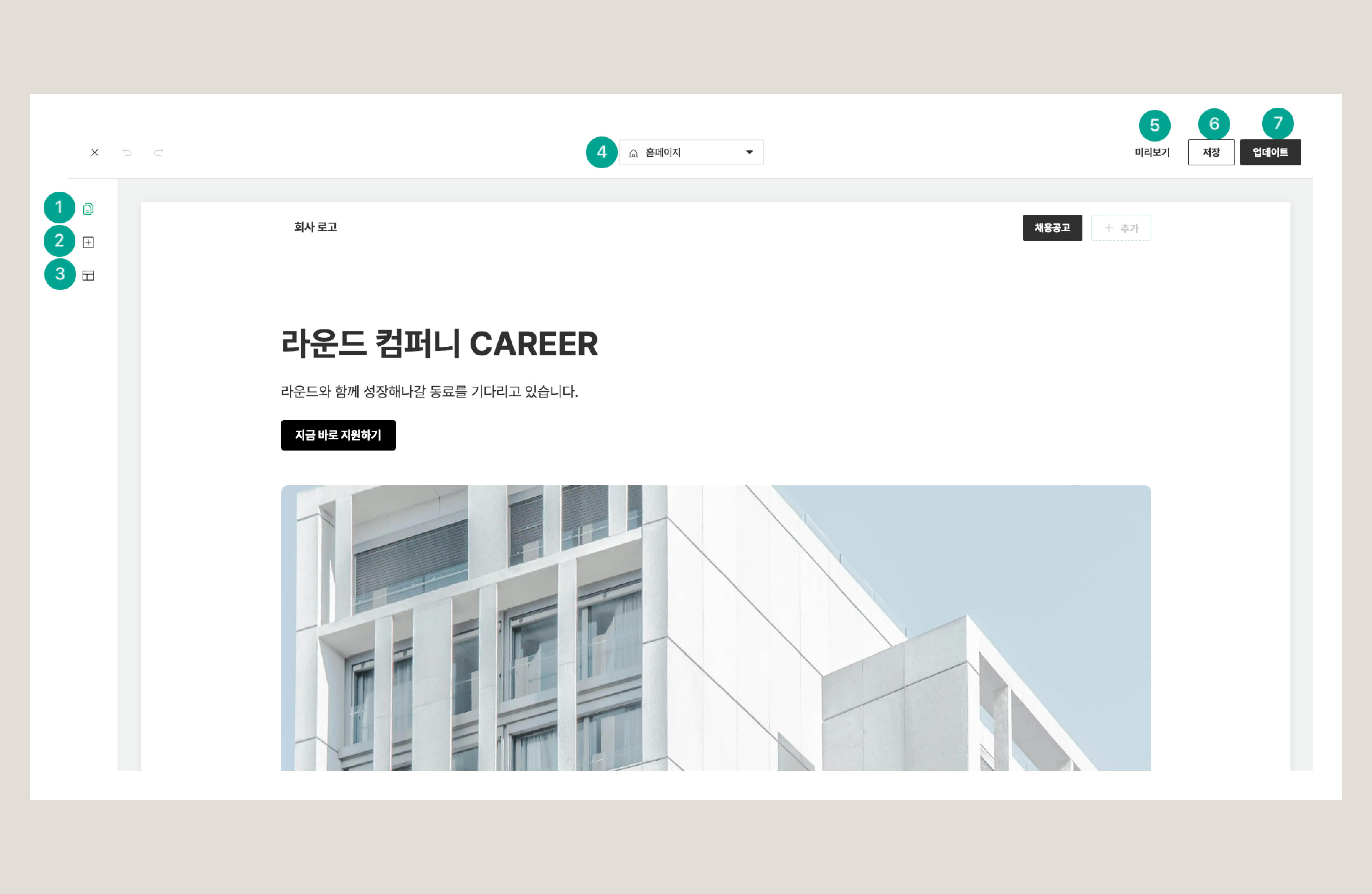
## 1. 편집기 버튼 구성
1. 페이지 메뉴 버튼
2. 섹션 메뉴 버튼
3. 페이지 스타일 버튼
4. 페이지 목록 버튼
5. 미리보기 버튼
6. 임시 저장 버튼
7. 배포 버튼
***
## 2. 각 버튼 상세 설명
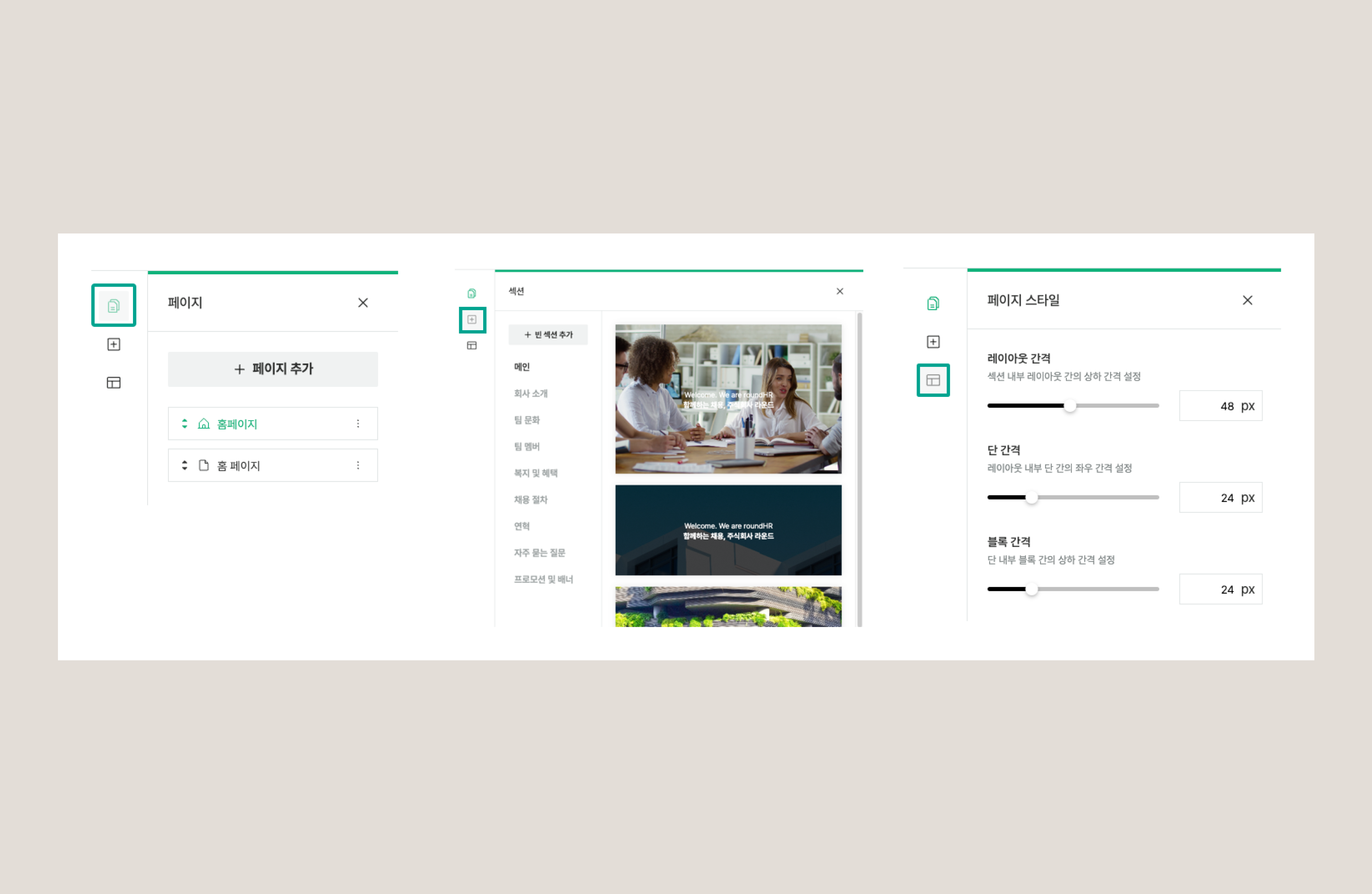
1. **페이지 메뉴** : 페이지 추가(샘플 페이지 선택 가능), 페이지 설정(설정 / 복제 / 삭제)
2. **섹션 메뉴** : 빈 섹션 추가(샘플 섹션 선택 가능)
3. **페이지 스타일** : '전체 적용 / 개별 적용 / 헤더 / 푸터' 탭으로 구성됩니다. 레이아웃 간격·단 간격·블록 간격은 '개별 적용' 탭에 속해 현재 편집 중인 페이지에만 적용되며, 모든 페이지에 공통으로 적용되는 설정('전체 적용' 탭)은 버튼 둥글기·기본 폰트입니다.
{% hint style="info" %}
**\[임시 저장]** 버튼은 편집 내용을 임시 저장하며, **\[배포]** 버튼을 클릭해야 실제 채용 홈페이지에 반영됩니다.
{% endhint %}
***
## 자주 묻는 질문
임시 저장과 배포의 차이점은 무엇인가요?
\*\*\[임시 저장]\*\*은 편집 중인 내용을 임시로 저장하는 기능입니다. \*\*\[배포]\*\*를 클릭해야 실제 채용 홈페이지에 변경 사항이 반영됩니다.
샘플 페이지나 섹션은 어디에서 추가하나요?
좌측 **페이지 메뉴** 또는 **섹션 메뉴** 버튼을 클릭하면 라운드HR에서 제공하는 샘플 템플릿을 선택하여 바로 추가할 수 있습니다.
페이지 스타일 버튼에서는 무엇을 설정하나요?
**페이지 스타일** 버튼에서는 페이지 전체에 공통으로 적용되는 간격을 설정할 수 있습니다. 레이아웃 간격, 단 간격, 블록 간격을 조정할 수 있습니다.